Installing MobaXterm
- Connect to Chem-jukebox.
- Navigate to PChem > MobaXterm > MobaXterm_Installer_v10.4
- Launch the MobaXterm_installer.msi application.
- Follow the on-screen instructions to complete the installation wizard.
Using MobaXterm
- Launch the MobaXterm application.
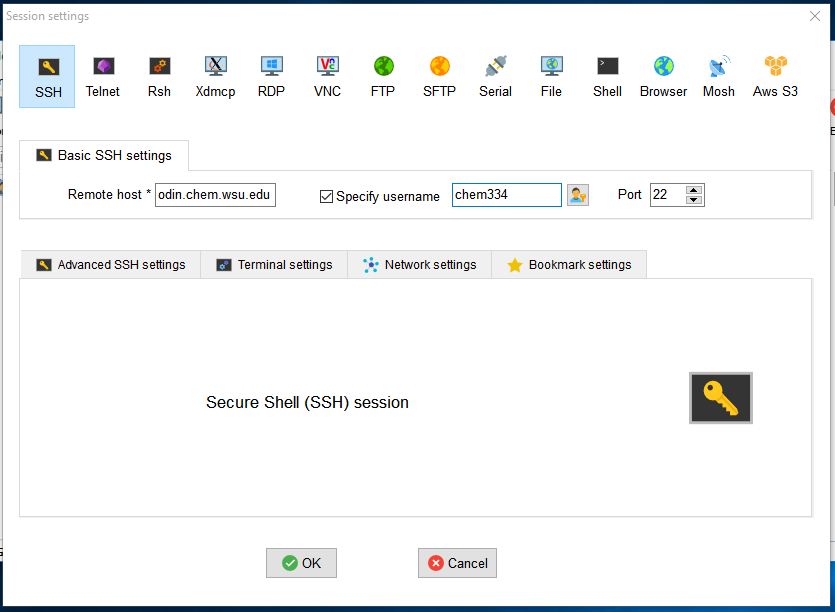
- To start your session click on the Session button in the top left corner
- Choose SSH session type.
- Enter the Basic SSH Settings.
- Enter the remote host name and username given to you by your instructor.
- To enter the username click the “Specify username” checkbox.
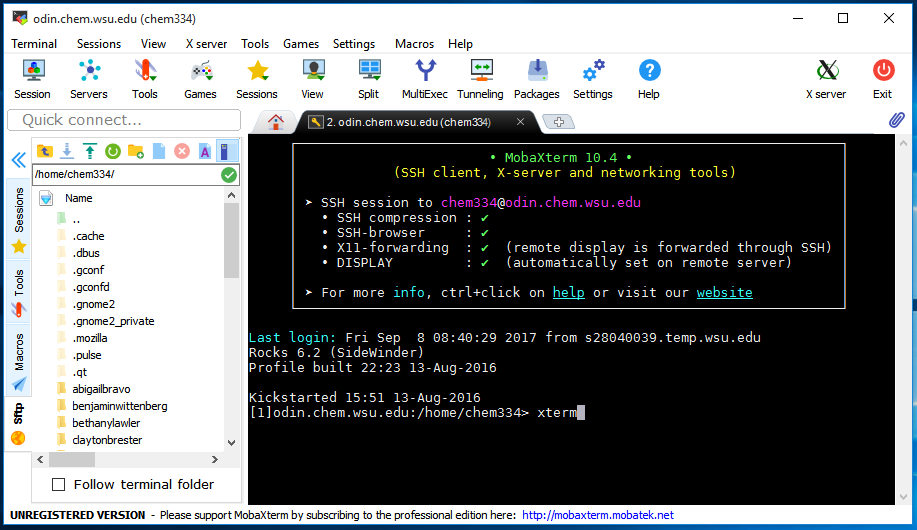
- Enter the password given to you by your instructor to access the server/remote host. The text will not be visible when you are entering the password. Hit enter to verify the password.
- Once signed in, to run the terminal, enter “xterm” (without quotations) into the command prompt window.
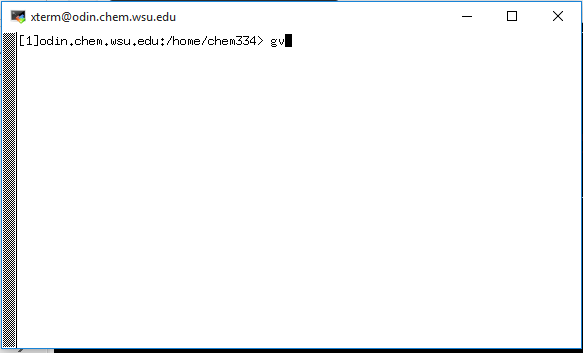
- Once the terminal is running GaussianView can be run by entering “gv” (without quotations) into the terminal.