X11 windows is an application that allows you to operate a desktop application on a remote computer. The remote computer is usually running a Linux or UNIX distribution.
If you are using Linux on your personal computer, you do not need to install an X11 window server. X11 is supported by default in Linux. This is a simple tutorial on enabling X11 forwarding in Linux.
Versions of OS X before 10.6 included X11 support. If your version of OS X is 10.7 or later, you can install Apple’s XQuartz software to support X11 windows.
Installing XQuartz
Versions 10.7 and later of the OS X operating system do not have X11 support. You must download an X11 application and install it.
- Using Spotlight, search for X11. The computer will respond with a message that X11 support can be downloaded from a web page.
- OS X loads a web page.
- Click the link on the web page to the XQuartz project.
- Click the download link for the XQuartz disk image. the XQuartz disk image will be downloaded to your computer, and launched. Double click the XQuartz install package.
- The XQuartz installation will begin. Click Continue.
- Follow the instructions in the Installation Wizard.
- Install for all users of the computer to:
- Install for all users of the computer.
- Accept the default location.
- After installation, XQuartz will prompt you to log out and log back in.
Using XQuartz
- Use Spotlight to find XQuartz. Launch the application.
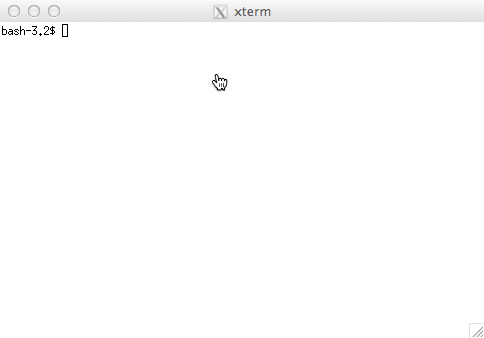
- Quartz will open a terminal. You must either launch a local X11 application, or, as in this case, connect to a remote computer and launch a remote application.
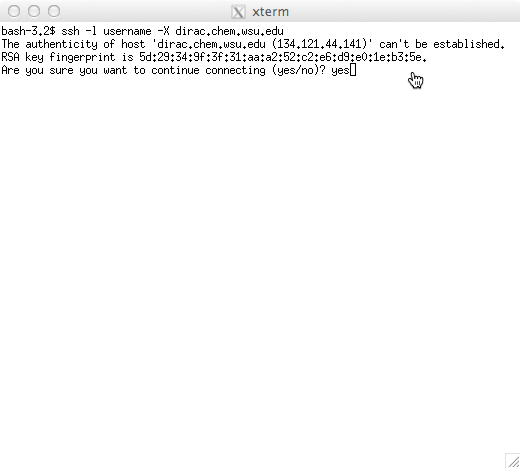
- Enter the connection string. In this example, we are connecting to
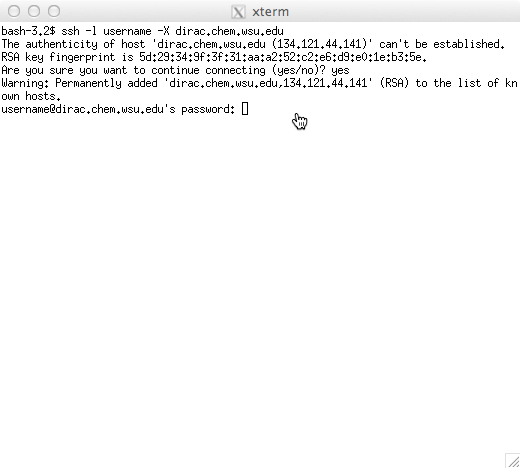
dirac.chem.wsu.eduwith the accountusernameand specifying that we want to receive X11 traffic. Because this is the first time we have connected to dirac from this computer, X11 prompts us to accept the key of the remote computer. Enteryes. - The key is stored. Enter the password for the account.
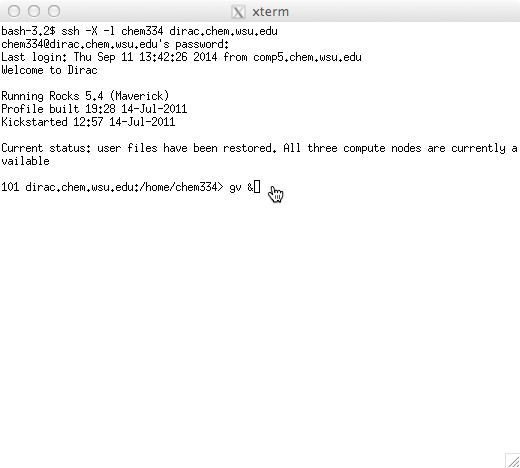
- The remote computer is ready to accept commands. Enter
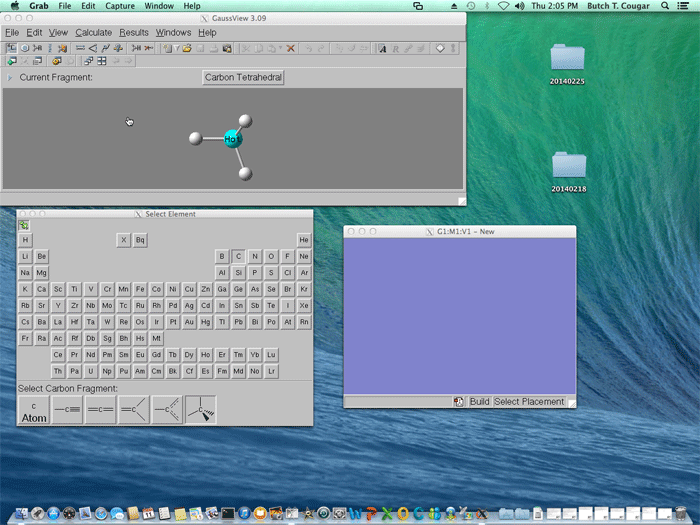
gv &to launch GaussView. - The remote application will be displayed on your desktop. When you are done, exit the application, then enter
exitat the terminal.