How to install Xming
- Connect to Chem-jukebox.
- Navigate to Jukebox > PChem > Xming.
- Launch the Xming application (Xming-mesa-6-9-0-31-setup.exe).
- Follow the on-screen instructions in the install wizard to:
- Select the full installation.
- Accept the default installation folder.
- Accept the default additional tasks.
Create an XLaunch Shortcut
Use Xming’s XLaunch application to create shortcuts to remote computers. The shortcut will remember the name of the remote computer, your remote user name, and launch any remote applications for you.
- Start the XLaunch application either from the Windows start menu or from the xming-mesa installation routine. XLaunch opens the display settings dialog box.
- Choose how Xming displays programs.
- Select Start a program from the Session type dialog box.
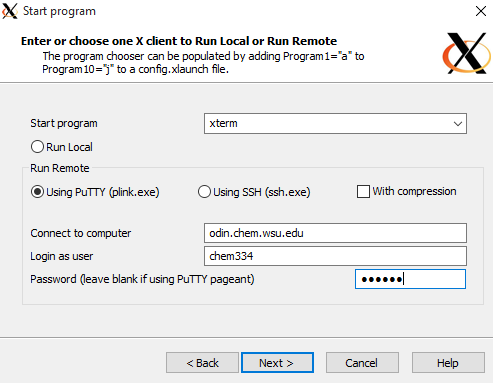
- Enter the program you want to start on the remote computer, the name of the remote computer, and your user name on the remote computer. This example is for odin.chem.wsu.edu teaching cluster.
- Xlaunch asks for parameter settings. Accept the default and click Next
- Save your configuration in a location you will remember. For example, on the desktop. Rename the saved configuration AFTER you have saved the configuration.
- Click Finish after you have saved your configuration.
Using Xming
XLaunch will start the X11 server and connect you to your remote computer, usually with ssh. Start any X11 application on your remote server and enjoy.
- The ssh application will prompt you with a PuTTY security alert that asks you to accept the remote computer’s host key. This only happens the first time you connect to the remote computer.
- The application asks for your remote password. Enter the password and click OK.
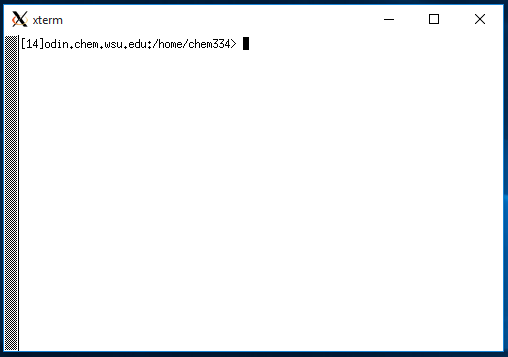
- You are connected to the remote computer. In this example, we are connected to dirac.chem.wsu.edu, running xterm. Enter any remote commands to use dirac.chem.wsu.edu.